


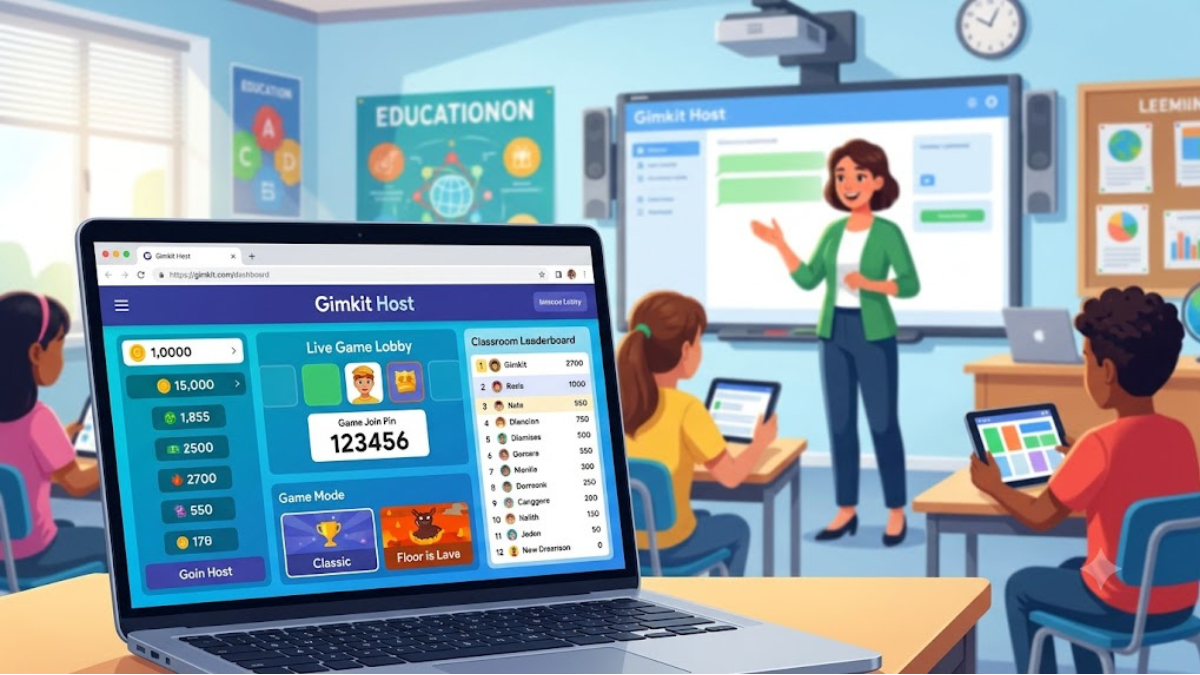
Learn how to use Gimkit Host to create interactive classroom games. Discover setup steps, engaging game modes, and top tips for teachers.
The modern classroom thrives on engagement, but keeping students focused in a digital world is a challenge many educators face daily. Traditional flashcards and standard review worksheets often fail to capture the attention of a tech-savvy generation. Enter Gimkit, a game-based learning platform designed by high school students who understood exactly what makes a classroom activity exciting. At the heart of this platform is the gimkit host feature, a powerful control center that allows teachers to transform ordinary quizzes into fast-paced, strategy-driven competitions.
Unlike traditional trivia games that only reward the fastest typist, this platform introduces an economy-based system. Students earn virtual currency by answering questions correctly, which they can then reinvest in upgrades, power-ups, and strategies. As a live game controller, you have the power to set the stakes, choose the environment, and monitor student progress in real time. This guide will walk you through everything you need to know to master the interface, choose the best game modes, and create an unforgettable learning experience for your students.
What is a Gimkit Host and Why Does It Matter?
Before diving into the technical setup, it is essential to understand what it means to run a live session. The person who initiates, configures, and manages a live game session is known as the moderator or presenter. In most educational settings, this role belongs to the teacher, though students can also take the lead during peer-led review sessions. The presenter acts as the game master, controlling when the game starts, tracking the leaderboard, and pausing the action if the energy in the room gets a little too high.
The magic of running a session lies in the flexibility it offers. You are not just launching a static quiz; you are creating a dynamic environment where students actively want to participate. The platform uses a repetition-based learning model. Because questions repeat throughout a session, students get multiple chances to master difficult concepts, turning mistakes into immediate learning opportunities. The dashboard provides live analytics, allowing you to see instantly which questions are causing confusion so you can address those learning gaps on the spot.
Step-by-Step Guide to Hosting Your First Gimkit Game
Setting up your very first live session is incredibly straightforward. The platform is designed to be intuitive, ensuring that you do not waste precious minutes of class time wrestling with complicated menus. Follow these simple steps to get your live game up and running in less than five minutes.
1. Create or Select a Kit
Your first step is to log into your account and navigate to your dashboard. Here, you will see your library of “Kits,” which are simply the question sets used to power the games. You can create a brand-new Kit from scratch, import questions from a spreadsheet, or use the “Gimkit Ink” feature to browse thousands of pre-made Kits created by other educators around the world. Once you have selected the perfect Kit for your lesson, click the prominent “Play Live” button.
2. Choose Your Game Mode
After clicking live play, you will be taken to the mode selection screen. The platform frequently updates its offerings, featuring a mix of classic modes and limited-time seasonal games. Depending on your lesson goals, you can choose a cooperative mode where the whole class works together, or a competitive mode where it is every student for themselves.
3. Configure Your Game Options
Before the lobby opens, you can fine-tune the game rules to match your classroom style. You can set a strict time limit (such as 10 or 15 minutes) or set a specific monetary goal (such as the first student to reach $50,000). You can also toggle features like clean language filters, allow or disallow late entries, and decide whether students can see correct answers after a missed question.
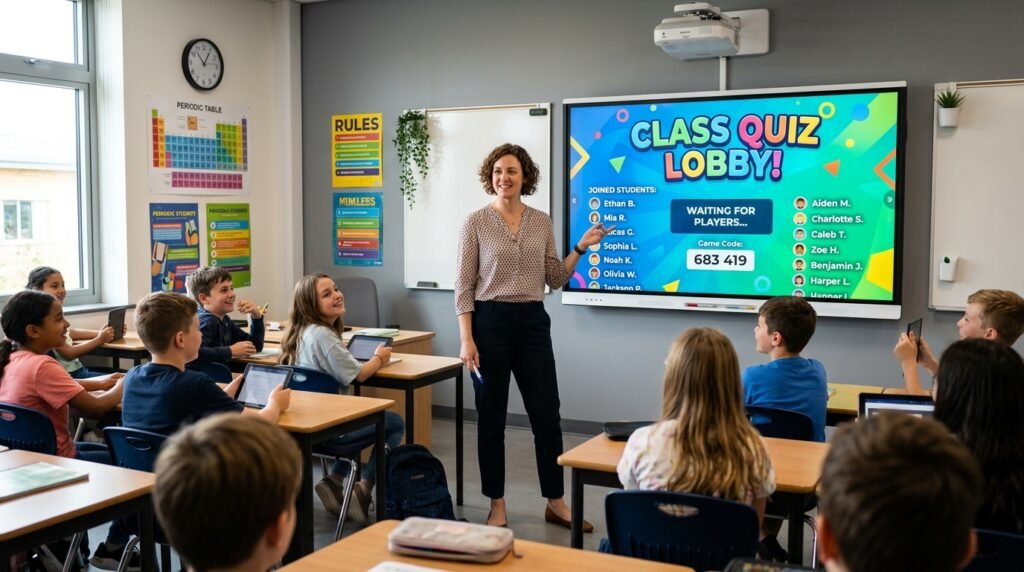
4. Open the Lobby and Invite Students
Once you click “Continue,” your live dashboard will appear, displaying a unique four-to-six-digit game code and a direct join link. Instruct your students to visit the student portal on their devices and enter the code along with their names. As students join, their names will pop up on your screen. When everyone is accounted for, click “Start Game” to unleash the excitement.
Exploring the Best Gimkit Host Game Modes
One of the biggest reasons educators love to utilize this system is the sheer variety of game modes available. Instead of playing the same style of quiz every week, you can completely change the mechanics of the game while keeping the underlying educational content exactly the same.
| Game Mode | Team Dynamic | Primary Objective | Best Used For |
| Classic | Competitive (Individual) | Earn the most virtual cash through upgrades. | Quick formative assessments and high-energy reviews. |
| Team Mode | Cooperative (Groups) | Combine earnings with teammates to beat other groups. | Building collaboration and peer-tutoring skills. |
| Trust No One | Social Deduction | Find the disguised aliens while answering questions. | End-of-week rewards and critical thinking exercises. |
| Floor is Lava | Whole-Class Cooperation | Answer questions to build a tower and escape rising lava. | Fostering a supportive, community-focused classroom. |
Choosing the right mode depends heavily on your classroom dynamics. If you have a highly competitive group, Classic or specialized survival modes work wonders. If you want to encourage lower-performing students who might feel intimidated by an individual leaderboard, cooperative options like “Floor is Lava” allow every single correct answer to contribute to a shared class victory.
Advanced Strategies for Managing a Live Session
Once the game begins, your role shifts from setup coordinator to active moderator. Managing a live room requires a balance of keeping the energy high while ensuring the educational value remains the focus.
First, keep a close eye on the live scoreboard displayed on your main classroom projector. Celebrating sudden shifts in rankings or pointing out a student who is on a massive “correct answer streak” keeps motivation high. However, do not just focus on the top players. Use the real-time data to spot students who might be struggling silently. If you notice a specific question has a low accuracy rate across the room, you can utilize the “Pause” button built directly into your dashboard.
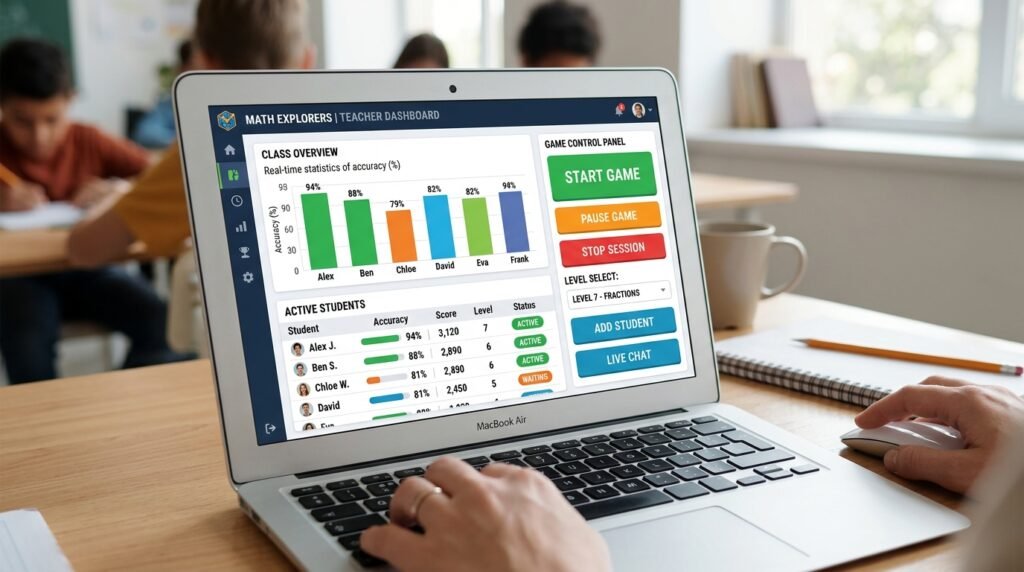
Pausing a live session is an incredibly effective pedagogical tool. When the game freezes, all student screens lock, redirecting their attention back to you. Use this brief intermission to explain a misunderstood concept, clarify a tricky question, or give a quick strategy tip on which shop upgrades offer the best return on investment. Once the confusion is cleared up, resume the action seamlessly.
Tips for Maximizing Engagement and Learning
To get the absolute most out of your experience as a game manager, consider implementing these proven classroom strategies:
- Balance Time and Goals: For shorter review sessions, a time limit of 7 to 10 minutes keeps the pace brisk. For deep-dive reviews, setting a collective class financial goal encourages sustained focus.
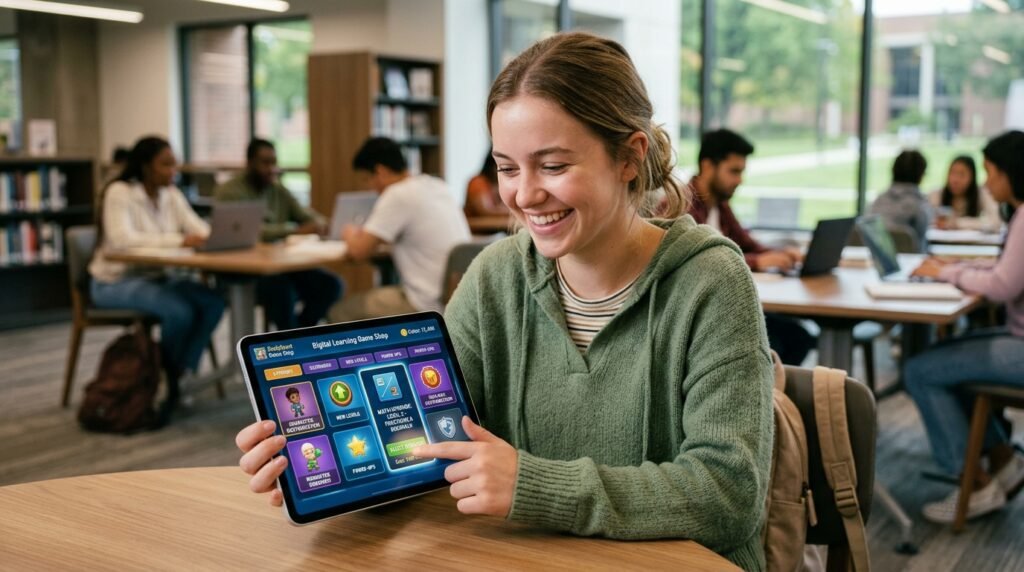
- Encourage Smart Investing: Remind students early in the game that spending their virtual cash on “Multiplier” and “Streak Bonus” upgrades in the shop will yield much higher returns later in the game than simply hoarding their initial earnings.
- Utilize Assignment Mode for Homework: If live class time is limited, remember that you do not always have to be a live presenter. You can assign Kits as independent homework, giving students a fun way to practice at their own pace.
Frequently Asked Questions
1. Can I run a live session if some of my students are learning remotely?
Yes, absolutely. Because the platform operates entirely online, remote students only need to see your shared screen (via Zoom, Google Meet, or Microsoft Teams) to view the lobby code and final leaderboard. They can answer all questions directly on their personal devices from home.
2. What happens if a student accidentally disconnects mid-game?
If a student loses their internet connection or closes their browser tab, they do not lose their progress. They can simply go back to the join page, enter the exact same game code, and use the exact same nickname. The system will automatically reconnect them to their active profile and restore their cash balance.
3. Is there a limit to how many students can join a live hosted session?
On the free basic tier, there are limits on group sizes depending on the specific active promotional period. However, with the premium school or individual subscriptions, you can host massive live games with hundreds of simultaneous players, making it perfect for whole-grade assemblies or large lecture halls.
4. Can I edit a question set while a live game is actively running?
No, once a session is launched, the question pool is locked for that specific instance. If you spot a typo or an incorrect answer marker mid-game, you will need to finish or end the current session, edit the Kit in your dashboard, and then launch a new live game.
5. Can students host live games for their classmates?
Yes, students can create their own accounts and launch live sessions. This is an excellent tool for project-based learning, where groups of students create review quizzes for their peers to test comprehension at the end of a presentation.
Conclusion: Elevating Classroom Dynamics
Mastering the role of a gimkit host is one of the quickest ways to inject pure excitement, healthy competition, and genuine joy into your daily lesson plans. By transforming routine assessments into an economic strategy game, you empower students to take control of their learning paths, learn from their mistakes, and collaborate with their peers in meaningful ways.
Whether you are looking to break up the monotony of test prep, conduct a quick formative check-in, or reward your hard-working class with a cooperative survival mode, the platform gives you all the tools necessary to succeed. Dive into your dashboard, choose a mode that fits your classroom vibe, and watch your students engage with your curriculum like never before.

