


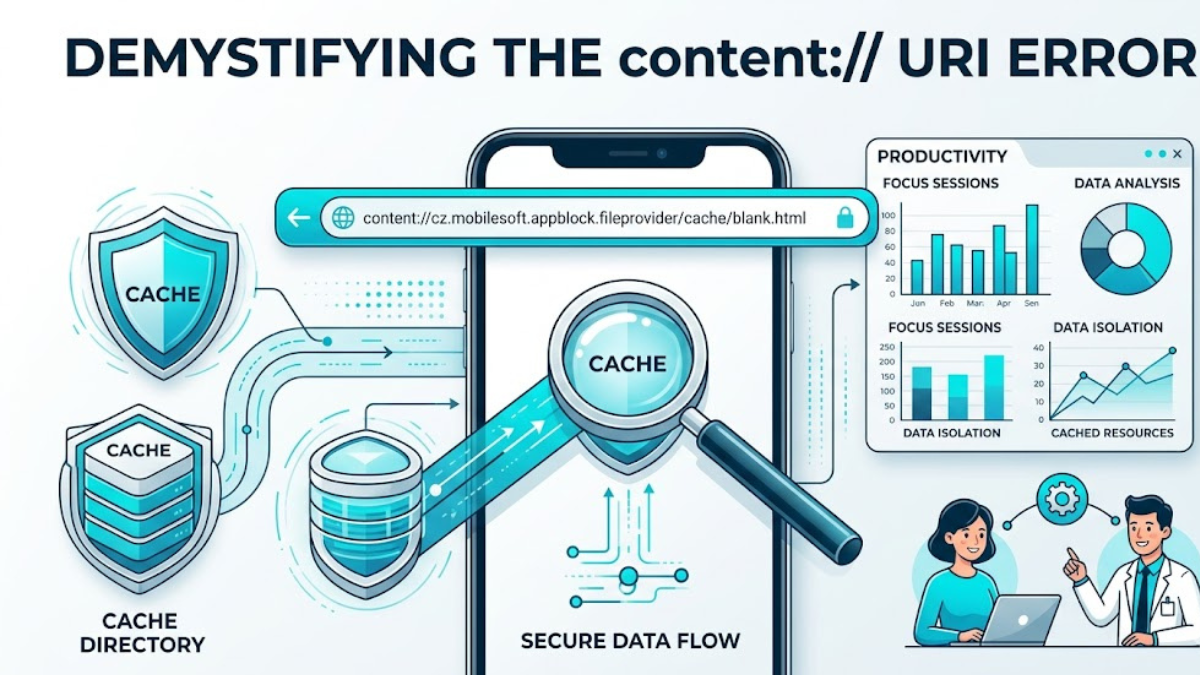
In an era of endless digital noise, staying focused on work or study can feel like an uphill battle. Millions of users turn to productivity extensions and application blockers to manage their screen time and limit mindless scrolling. One of the most popular tools in this space is AppBlock, developed by MobileSoft.
While these applications work wonders for your self-control, they can occasionally surface unfamiliar technical errors or strings in your browser history. One specific string that frequently confuses users on Android devices, tablets, and Chromebooks is content://cz.mobilesoft.appblock.fileprovider/cache/blank.html.
If you have stumbled upon this mysterious address in your mobile browser’s URL bar or device log, there is absolutely no need to panic. This comprehensive guide breaks down exactly what this URI means, why it appears, how it impacts your system, and how to resolve it if it disrupts your workflow.
The Anatomy of a Content URI: Breaking Down the String
To understand what is happening on your device, it helps to dissect the technical structure of the address. The string content://cz.mobilesoft.appblock.fileprovider/cache/blank.html is not a standard web URL that points to a live website on the public internet. Instead, it is a specialized Android Content URI used for secure, internal app communication.
+-------------------------------------------------------------------------------------------------------------------+
|                                            CONTENT URI ANATOMY                                                    |
+----------------------+-------------------------------------+-----------------------+------------------------------+
|       SCHEME         |              AUTHORITY              |         PATH          |           RESOURCE           |
|     content://       | cz.mobilesoft.appblock.fileprovider |        /cache/        |          blank.html          |
|  (Android Protocol)  |      (App Package Identifier)       |   (Local Directory)   |      (Static Placeholder)    |
+----------------------+-------------------------------------+-----------------------+------------------------------+
1. The Protocol Scheme (content://)
Standard web browsing relies on http:// or https:// to fetch data from remote servers over the web. The content:// prefix tells the Android operating system to pull data from a local Content Provider managed by an installed application.
2. The App Authority (cz.mobilesoft.appblock.fileprovider)
This segment acts as a unique address book entry for the app. The prefix cz represents the Czech Republic country code, where MobileSoft s.r.o. is officially registered. The rest of the string references AppBlock’s specific FileProvider component, which securely shares files without exposing the device’s entire root storage.
3. The Path and Resource (/cache/blank.html)
This points directly to a temporary storage folder (the cache) on your local hardware and targets a small, empty, static HTML document.
Why Does This URI Appear in Your Browser?
The appearance of content://cz.mobilesoft.appblock.fileprovider/cache/blank.html is actually proof that AppBlock is doing its job correctly. When you add a distracting website to your active blocklist, AppBlock intercepts your navigation request before your browser can connect to the site’s external servers.
To handle this block gracefully, AppBlock faces a choice: it can let the browser throw a jarring connection timeout error, or it can feed the browser a harmless local placeholder page. AppBlock chooses the latter. It instantly streams the cached blank.html file into your browser’s WebView component. This process registers as a redirect, which is why the local string replaces the original domain in your URL bar and history logs.
Security Assessment: Is It Safe?
When unfamiliar code strings appear unexpectedly, malware or security compromises are natural concerns. However, from an architecture standpoint, this specific data path is entirely benign.
Traditional File Paths vs. Content URIs
Unlike traditional file paths that give broad access to local storage, Android Content URIs enforce a strict sandbox. The table below illustrates why this protocol benefits your device security.
| Security Characteristic | Traditional File Path (e.g., file://) | Android Content URI Model |
| Permission Control | Broad, system-wide access to storage. | Granular, app-level isolation. |
| Data Integrity | Files can potentially be modified by other apps. | Read-only static placeholders like blank.html. |
| External Communication | Can execute script requests over a network. | Strictly local; transmits zero data to outside servers. |
| Malware Risk | Vulnerable to path traversal exploits. | Restricted via hardcoded application manifests. |
Security Note: The file
blank.htmlcontains no executable scripts, tracking code, or external data proxies. It is completely safe and functions purely as a visual stop-sign for blocked online spaces.
Common Triggers for the “Blank Screen” Glitch
While seeing the string during an active focus session is normal, sometimes a device gets stuck on the empty screen, or the local path fails to load properly. This bug typically points to a few common system hiccups:
- Corrupted Local Storage: Temporary system caches can become corrupted after major software updates, preventing the app from reading the file correctly.
- Permission Mismatch: If the device’s battery saver or an aggressive security utility revokes AppBlock’s access to its own file provider directory, the redirect hangs.
- Webview Glitches: Outdated Android System WebView components can struggle to render internal data paths smoothly.
Practical Solutions to Resolve the Redirect Display
If you no longer want to see content://cz.mobilesoft.appblock.fileprovider/cache/blank.html popping up, or if it is blocking websites you actually need to access, follow these quick troubleshooting methods.
Method 1: Modify Your Active Blocklist
If a legitimate work or school website is showing up as a blank page, it may have been caught by an overly broad blocking rule or keyword filter.
- Launch the AppBlock application on your device.
- Tap on the Settings gear icon or go to your active Profiles.
- Select Web Filtering and review your restricted URLs and domains.
- Remove the domain or adjust the keyword parameters, then save changes.
Method 2: Clear AppBlock Cache Data
Clearing the temporary files forces the application to regenerate fresh, uncorrupted layout components.
- Open your Android device Settings menu.
- Navigate to Apps or Application Manager and locate AppBlock.
- Tap on Storage & Cache.
- Select Clear Cache. (Note: Do not tap Clear Data unless you want to reconfigure all your focus schedules from scratch).
Method 3: Temporarily Pause Blocking Schedules
If you just need a temporary break to browse freely without getting redirected to the local file path:
- Pull down your system’s notification panel.
- Find the persistent AppBlock active status notification.
- Tap Pause or disable blocking temporarily.
Method 4: Full Uninstallation
If you no longer use the productivity application, removing it entirely will purge the file authority and stop the redirects for good.
- Long-press the AppBlock icon on your home screen or app drawer.
- Tap Uninstall and confirm your choice.
Frequently Asked Questions
1. Why does this content URI appear directly in my Google Chrome history?
Android browsers treat any successful redirection page as a visited destination. When AppBlock substitutes an internet domain with a local file, Chrome logs that specific file path as an item in your browsing history.
2. Can I manually open this file by typing the string into a laptop browser?
No. The string relies on the internal Android architecture of your specific mobile device. Typing it into a desktop computer or an unrelated operating system will result in an invalid web address error.
3. Will clearing this cache delete my custom blocking rules?
No. Clearing the app’s cache only removes temporary files like blank.html. Your configurations, scheduled profiles, and rules are safely kept in your app data or cloud backups.
4. What does the “cz null” indicator mean in my device’s developer options?
If you see a “cz null” or “empty authority” code in your Android system logs, it simply means AppBlock tried an internal check that came up empty. It is entirely harmless and does not indicate system failure.
5. Why do I see this address on my Chromebook if it is an Android string?
Modern Chromebooks run a containerized Android subsystem to let users install mobile apps from the Google Play Store. If you have the Android version of AppBlock running on your ChromeOS device, it will display the same local URI.
6. Can this local page cause high battery or cellular data usage?
On the contrary, it saves resource usage. Because the file loads entirely from your device’s internal storage disk, it saves cellular data and cuts down network processing cycles.
7. What is the difference between this and an explicit AppBlock warning page?
Depending on your settings, AppBlock can show a stylized block notice explaining why the site is locked, or load a completely empty page (blank.html) to save system memory and maximize performance.
8. Can a third-party antivirus app safely delete this file?
Most mobile antivirus programs will recognize it as a core component of a verified productivity app and leave it alone. If an over-aggressive cleaner removes it, AppBlock will recreate it automatically on the next block.
9. Why does the page freeze occasionally instead of redirecting?
This happens when your Android System WebView app is out of date or running low on available RAM resources. Keeping your core system apps updated via the Google Play Store prevents these processing hangs.
10. Does this track what I am doing while using an incognito or private tab?
AppBlock only references URLs against your local blocklist to trigger the file redirect. It does not record your keystrokes, log your private data, or transmit your private session histories to external servers.
Conclusion: A Quick Summary
In short, seeing content://cz.mobilesoft.appblock.fileprovider/cache/blank.html in your address bar or system logs means AppBlock is successfully keeping you focused. It is a safe, local Android mechanism used to load an empty placeholder page whenever a blacklisted website is intercepted. It carries no malware risks, uses zero data, and can be easily managed by clearing your app cache, pausing your focus schedules, or updating your application settings. Knowing these quick fixes keeps your focus intact and your digital environment running smoothly!

